


Dynamics 365 InApp Notifications
Included in the first update of 2022, an interesting feature was launched: In App Notification. This feature will facilitate communication and collaboration within Dynamics 365.
Accustomed to receiving notifications throughout the day on your smartphone from your email client, social networks, or bank, this concept is no different when it is Dynamics CRM doing it.
First, we will look at how to enable this feature. I will also add some technical information that may be useful if you want to try it right away. Finally, we will see how to use it and to what extent it can be interesting for businesses.
[su_note note_color=”#F0EFEF” text_color=”#333333″ radius=”5″ class=””]
window.hsFormsOnReady = window.hsFormsOnReady || []; window.hsFormsOnReady.push(()=>{ hbspt.forms.create({ portalId: 7555051, formId: "69ee043b-74a0-4723-8133-9ea7d8275ca1", target: "#hbspt-form-1784473714000-5255066935", region: "na1", })});
[/su_note]
In-App Notification
To enable In-App notifications in the application, go to make.powerapps.com > Apps > Click on the 3 dots in your app’s row > Edit > In the app editor, click on Settings > Features tab > Enable in-app notifications as shown below.
Dynamics 365 InApp Notification
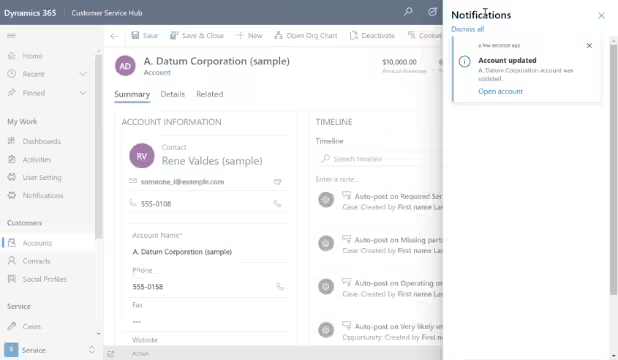
Next, save and publish. After refreshing, you will be able to see a new notification icon in the top bar: Dynamics 365 InApp Notification.
If you click on it, a side panel will be displayed on the right view with the option to access the notification settings. Also note that a new Notification table appears in Dataverse. This notification table has the following fields:
- Title: Title of the notification
- Owner: The user who receives the notification
- Body: Details of the notification
- Icon Type: Predefined icon depending on whether it is a success, error, or information message
- Toast type: The list of notification behaviors
- Expiration: The number of seconds after which the notification should be deleted if it has not been already
- Data: JSON used for extensibility and parsing of richer data in the notification. The maximum length is 5,000 characters.
This feature will allow us to create any type of notification for any type of action within Dynamics 365. There is no doubt that in-app notifications can be truly useful for businesses.
Example of Using Notifications in Dynamics 365
We are talking about a coffee machine manufacturer that has stores all over the world. In those stores, in addition to selling coffee machines, after-sales service is also available. These after-sales service requests must be resolved within a limited time.
In this way, the store creates and assigns a work order to the corresponding technician. The application is designed in such a way that the person who is supposed to handle the request does not always realize it, unless they constantly check their view of incoming work order requests so as not to miss anything.
This recurring check makes them lose precious time and, should an error occur — which can happen quite easily — a request may be attended to late, which would be terrible for the company’s image.
To avoid this, we will create a flow that triggers every time the owner of the work order is modified, in order to create a notification to the owner to whom it is assigned.